Single sign-on (SSO)
Let your team sign in to ReadyView with their company account through any SAML 2.0 identity provider, such as Microsoft Entra ID, Okta, or Google Workspace.
ReadyView supports single sign-on (SSO) with any SAML 2.0 identity provider. Once SSO is set up, your team signs in to ReadyView with their company account.
#Step 1: Add ReadyView to your identity provider
In ReadyView, go to Administration > Organization > Settings. The SAML Configuration panel lists the values your identity provider needs, each with a Copy button. Create a SAML 2.0 application for ReadyView in your identity provider with these values.
| Identity provider setting | Value |
|---|---|
| Identifier (Entity ID) | Your organization ID, shown as Identifier in ReadyView |
| Reply URL (ACS URL) | https://readyview-5ff37.firebaseapp.com/__/auth/handler |
| Sign-on URL | Your organization's sign-in link, shown as Sign-on URL in ReadyView. It looks like https://ui.readylinks.io/login?sso= followed by your organization ID |
| Name ID | The user's email address. In Microsoft Entra ID, use user.mail |
| Roles (optional) | ReadyView role names in an attribute named role. Microsoft Entra ID sends app roles this way. See Roles and permissions |
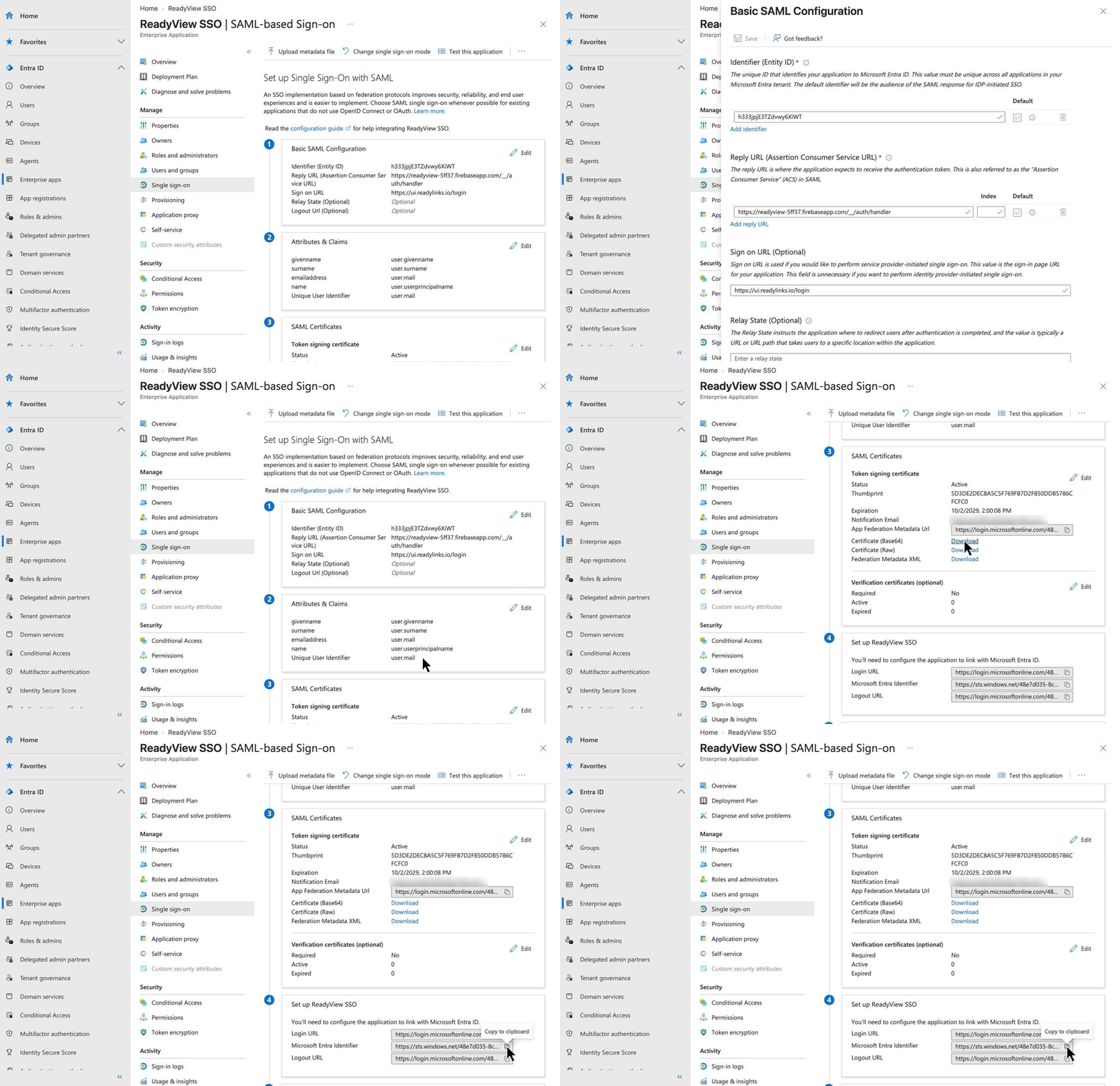
#Step 2: Set up single sign-on in ReadyView
- In Administration > Organization > Settings, under SAML Configuration, select Enable SAML.
- Paste your identity provider's metadata URL and select Import. ReadyView fills in the entity ID, SSO URL, and signing certificate. In Microsoft Entra ID, this is the App Federation Metadata Url.
- Check the details, then select Save.
No metadata URL? Select Upload metadata file, or enter the details yourself:
| ReadyView field | Value from your identity provider | Name in Microsoft Entra ID |
|---|---|---|
| Entity ID | Your identity provider's entity ID, also called the issuer | Microsoft Entra Identifier |
| SSO URL | The identity provider's sign-in URL | Login URL |
| Certificate | The signing certificate. Paste it or upload the file, in any format | Certificate (Base64) or Certificate (Raw) |
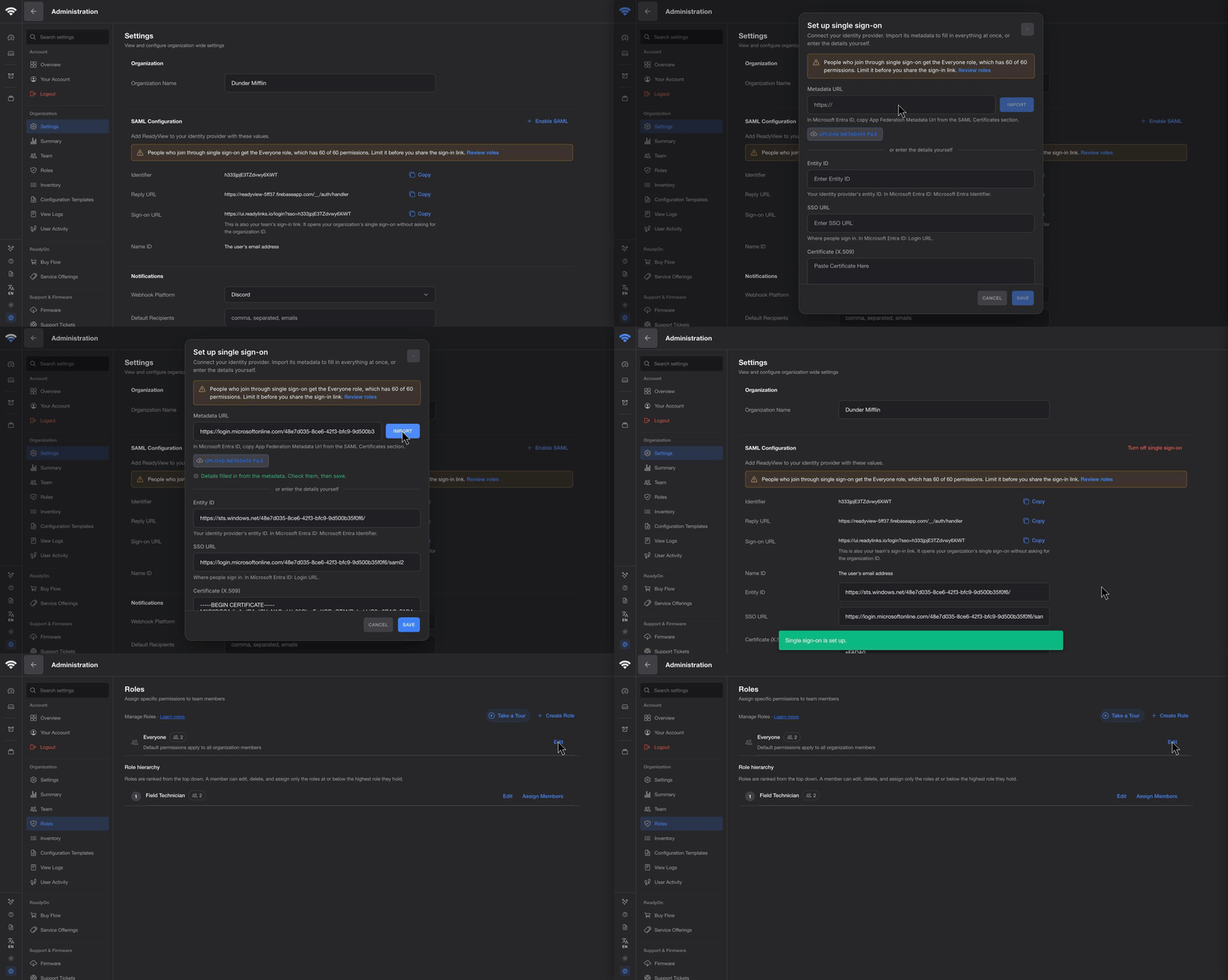
To change the details later, for example when your identity provider rotates its signing certificate, edit the fields and select Apply Changes. To stop using SSO, select Turn off single sign-on.
#Step 3: Sign in with SSO
Share your sign-in link, the Sign-on URL from Step 1, with your team. The ReadyView application in your identity provider opens the same link.
- Open the sign-in link and select Continue with single sign-on.
- Sign in with your identity provider in the pop-up window.
The first time someone signs in with SSO, ReadyView adds them to your organization. If their email address already has a ReadyView password, ReadyView asks for it once to connect SSO to their account.

#Roles and permissions
SSO handles sign-in. ReadyView roles decide what each member can do. See Roles and permissions for creating and assigning roles.
- New members get the Everyone role, which starts with every permission. Limit it before you share the sign-in link, for example with the View Only template, and grant more through other roles.
- Your identity provider can assign roles. Each time someone signs in, ReadyView applies the roles named in their
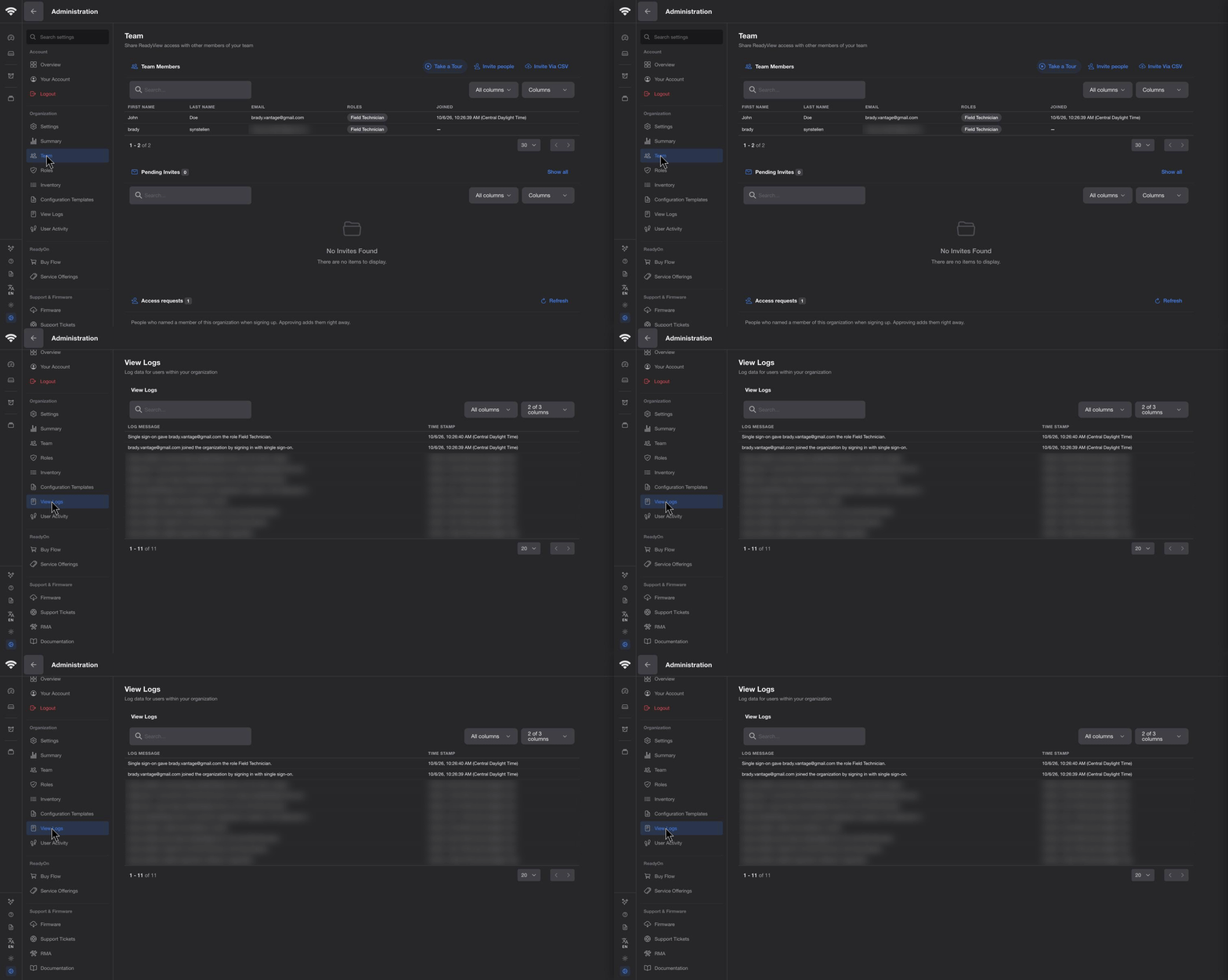
roleattribute and removes roles it no longer sends. Only roles that exist in your organization are applied, and roles assigned in ReadyView are never changed. - To assign roles in ReadyView, use Administration > Organization > Roles > Assign Members, or invite people with their roles under Administration > Organization > Team before they first sign in.
- Removing someone from your identity provider does not remove them from ReadyView. Remove members under Administration > Organization > Team. They can't rejoin through SSO until they're invited again.
#Troubleshooting
| Symptom | What to check |
|---|---|
| The metadata can't be imported | The metadata URL is correct, or upload the metadata file instead |
| The details can't be saved | The Entity ID and SSO URL come from your identity provider, and the certificate is its signing certificate |
| "Failed SSO sign in" | The details match your identity provider, and the user has access to the ReadyView application |
| "SSO isn't set up for this organization" | The sign-in link is your organization's, and single sign-on is set up |
| The sign-in window doesn't open | Pop-ups are allowed for ui.readylinks.io |
| "You were removed from this organization" | Invite the person again under Administration > Organization > Team |
| "Your identity provider didn't send an email address" | The Name ID is the user's email address |
#Related guides
Last updated October 5, 2026