Troubleshooting basics
A bottom-up method for working out why a device can't connect, with the commands to run at each step and what the answers mean.
Every connectivity problem has the same shape: somewhere in the chain from the cable to the application, one step isn't happening. The fastest way to find it is to check the steps in order from the bottom and stop at the first one that fails.
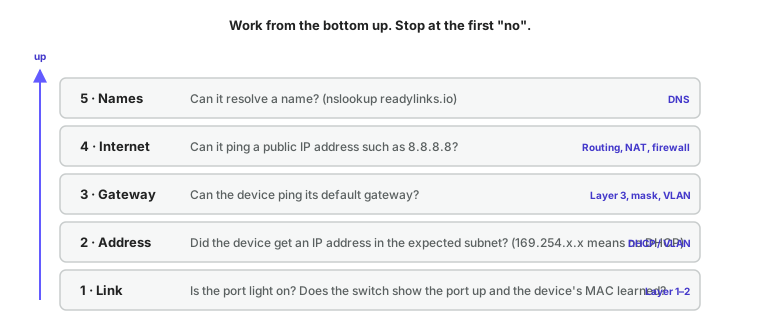
#1. Is there a link?
Question: Does the port show up on the switch, and has the switch learned the device's MAC address?
Check:
- Look at the port LED. No light means no link.
- In ReadyView, open the switch and check the port status and the MAC table. From the CLI:
show interface statusandshow mac-address-table.
If it fails: The problem is physical. Swap the patch lead, try another port, check the far-end device is powered. If the device is PoE-powered, check the PoE budget hasn't been exhausted. See Ethernet, PoE, and cabling.
If the link is up but the MAC never appears: The device isn't sending anything. It may be off, in a boot loop, or have a disabled network interface.
#2. Did it get an address?
Question: Does the device have an IP address in the subnet you expect?
Check: On the device, look at its network settings.
# macOS / Linux
ip addr        # or: ifconfig

# Windows
ipconfig /all| What you see | What it means |
|---|---|
| An address in the right subnet, with a gateway and DNS servers | DHCP worked. Go to step 3. |
169.254.x.x | The device asked for DHCP and got no answer. |
| An address in the wrong subnet | The port is in the wrong VLAN, or the device has a stale lease from somewhere else. |
| A static address you didn't expect | Someone configured it by hand. Check the mask and gateway match the VLAN. |
If it fails: DHCP broadcasts aren't reaching a DHCP server, or the server isn't answering. In order of likelihood:
- The switch port is in the wrong VLAN. Check the port's untagged VLAN in switchport settings.
- The VLAN has no DHCP server and no DHCP relay. Check the VLAN's DHCP settings in ReadyView.
- The DHCP scope is exhausted. Check the lease table on the server.
- A trunk between switches isn't carrying that VLAN.
Renewing the lease forces a fresh DORA exchange and is the quickest way to test a fix:
# macOS
sudo ipconfig set en0 DHCP

# Linux
sudo dhclient -r && sudo dhclient

# Windows
ipconfig /release && ipconfig /renew#3. Can it reach the gateway?
Question: Can the device ping its default gateway?
ping 192.168.10.1If it fails: The device and gateway can't exchange frames even though both have addresses. Check:
- The subnet mask on the device. A wrong mask makes the device think the gateway is remote and try to ARP for something else.
- The device's ARP table (
arp -a). If the gateway's entry isincomplete, the ARP request went unanswered, which means the gateway isn't in this VLAN or isn't actually configured at that address. - That the gateway address is really configured on a router interface in this VLAN. See switching and VLANs.
Some firewalls are configured not to answer ping. If the gateway is a firewall and nothing else works either, that may be the reason; try step 4 anyway.
You can also run the test from the switch, which separates a device problem from a network problem:
GL-24xT-P600D# ping 192.168.10.1
GL-24xT-P600D# ping 8.8.8.8 count 10 length 56
GL-24xT-P600D# traceroute 8.8.8.8
ping on the switch takes an IP address only, not a hostname, and if you give count you must also give length. traceroute accepts either and gives up after six seconds, so a long path may show as a timeout.
#4. Can it reach the internet by address?
Question: Can the device ping a public IP address directly, without DNS?
ping 8.8.8.8If step 3 passed but this fails: Routing or NAT is the problem, and the fault is upstream of the device.
- Run
traceroute 8.8.8.8(tracerton Windows). The last hop that answers tells you how far packets get. If it stops at the gateway, the gateway has no default route or the ISP link is down. If it stops at the firewall, check the firewall's rules and NAT. - Check whether the problem is only this VLAN. If staff can browse and guests can't, a firewall rule or ACL is blocking the guest VLAN.
- Check that the VLAN's subnet is in the router's routing table and in the NAT rules. A new VLAN that was never added to the firewall's NAT policy will reach the gateway and nothing beyond it.
#5. Can it resolve names?
Question: Can the device turn a name into an address?
nslookup readylinks.io
# or
dig readylinks.io
If step 4 passed but this fails: DNS is the problem, and this is the single most common cause of "the internet is down".
- Check which DNS server the device is using (step 2's output). If it is the gateway, confirm the gateway is actually running a resolver or forwarding to one.
- Try a public resolver directly:
nslookup readylinks.io 8.8.8.8. If that works, the configured DNS server is at fault; if it doesn't, UDP port 53 is being blocked somewhere. - If some names resolve and others don't, the local resolver's upstream or cache is broken.
#6. Is it the application?
If all five rungs pass and something still doesn't work, the network is doing its job. Look at the application: the correct port is open on the server, a host firewall isn't blocking it, certificates are valid, and the service is running. curl -v https://example.com shows exactly where an HTTPS connection stalls.
#Reading the switch
All of these run at the top-level prompt of a GL-series switch. If you haven't used the ReadyLinks CLI before, read using the CLI first; end and exit don't do what Cisco users expect.
The most useful commands when working through the ladder:
| Command | Shows |
|---|---|
show interface status | Link state, negotiation, speed, duplex, learning, isolation, rate limits and MAC limit for every port |
show interface counters ethernet RJ45/G1 | Good and bad packet counts, collisions and drops: a cable or duplex problem if the bad counts climb |
show mac-address-table | Which MAC is on which port, in which VLAN |
show mac-address interface ethernet RJ45/G1 | The MAC table for one port |
show arp | The switch's own ARP table for each VLAN interface |
show vlan all / show vlan 20 | Which ports are tagged and untagged in each VLAN |
show interface switchport ethernet RJ45/G1 | A port's PVID and link type |
show vlan interface | The switch's own IP addresses and gateway |
show ip routing-table | The routing table on a Layer 3 switch |
show dns / show sntp | DNS servers and time source, which the cloud connection depends on |
show ip dhcp snooping group | The DHCP binding table: every lease the switch has seen |
show ip dhcp snooping status | Which ports are trusted |
show arp-inspection status | Per-VLAN ARP inspection state |
show ip igmp snooping group | Multicast groups and the ports they are forwarded to |
show loop-detection / show spanning-tree | Loop and spanning-tree state |
show lldp neighbor_information | What is plugged into each port, if it speaks LLDP |
show power | PoE draw per port and the remaining budget |
show logging | The system log, including ports shut by rate limits or loop detection |
show readyview connection all | The switch's cloud connection state |
ping 10.0.20.1 / traceroute 8.8.8.8 | Reachability from the switch itself |
The full set used across these guides is collected in the CLI quick reference, with the dashboard equivalents under switch settings.
#When the switch itself is offline in ReadyView
A switch that shows as offline in the dashboard is a special case of the same ladder, run from the switch's point of view. It needs a link on its uplink, an address (DHCP or static, with DNS and NTP if static), a gateway, and outbound HTTPS to the ReadyLinks cloud. The firewall rules page lists the exact hosts and ports, and show readyview connection all on the CLI reports which step the switch is stuck on.
Next: the CLI quick reference collects every command used in these guides in one place.
Last updated October 5, 2026