Roles and permissions
Control what each member of your ReadyView organization can see and do. Create roles from templates, assign members, rank roles, and limit sites to certain roles.
ReadyView uses roles to control what each member of your organization can see and do, from which sites they can open to whether they can reboot a switch.
#Create a role
- Go to Administration > Organization > Roles and select Create Role.
- Enter a name for the role.
- Optionally, select a template to start from. A template only pre-selects permissions: the role is whatever you save.
- Adjust the permissions. Select individual permissions, use a section's checkbox to grant or clear the whole section, or search for a permission by name.
- Select Save.
| Template | What it grants |
|---|---|
| Admin | Everything, including members, roles, and organization settings |
| Network Admin | Full control of sites, devices, and configuration. No member, role, or organization administration |
| Technician | Hands-on device work: claim, configure, reboot, upgrade, and remote access. Can't delete sites or devices |
| View Only | Sees everything the role's sites allow and changes nothing |
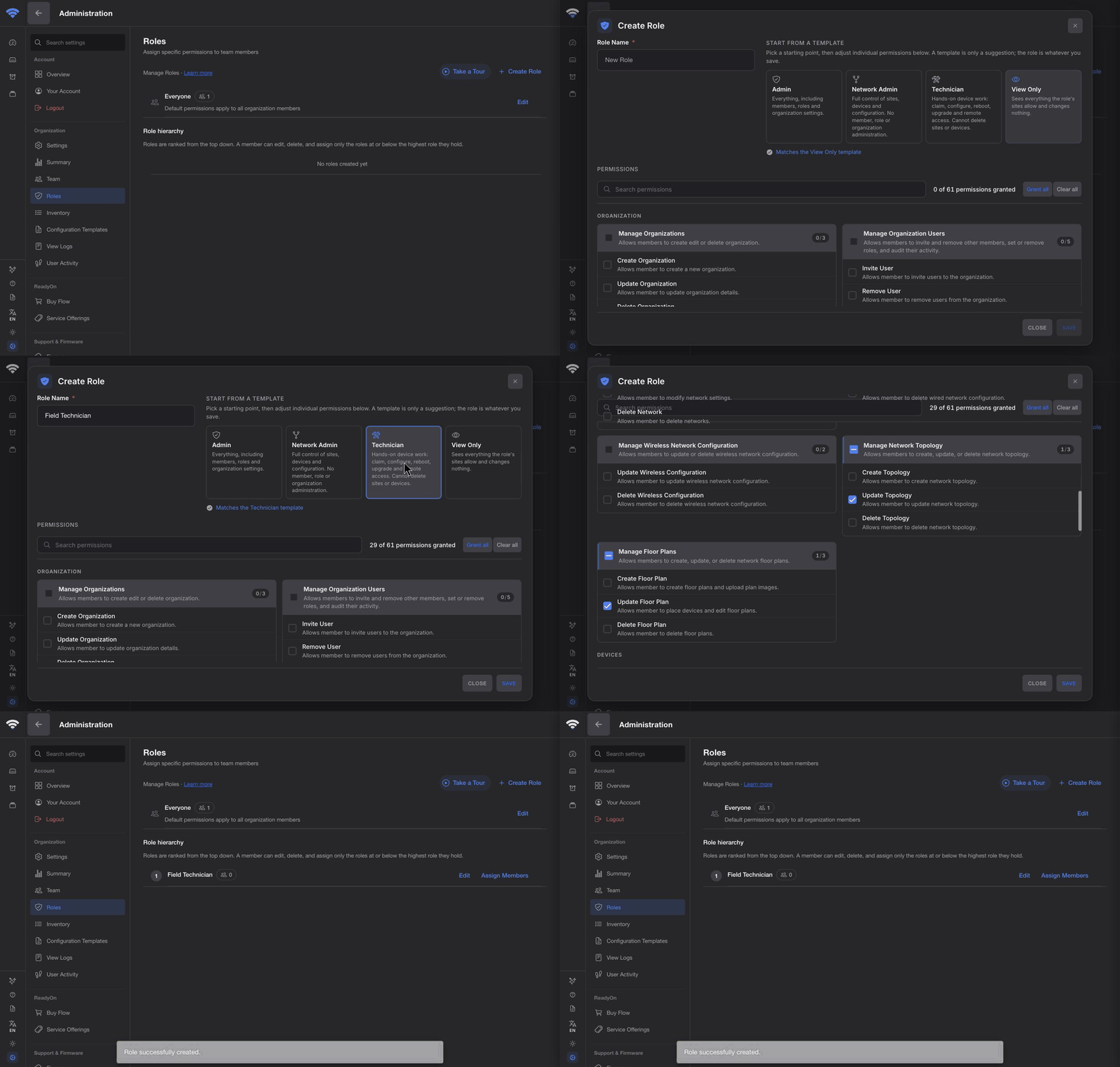
To change a role later, including Everyone, select Edit next to it.
#Assign members to a role
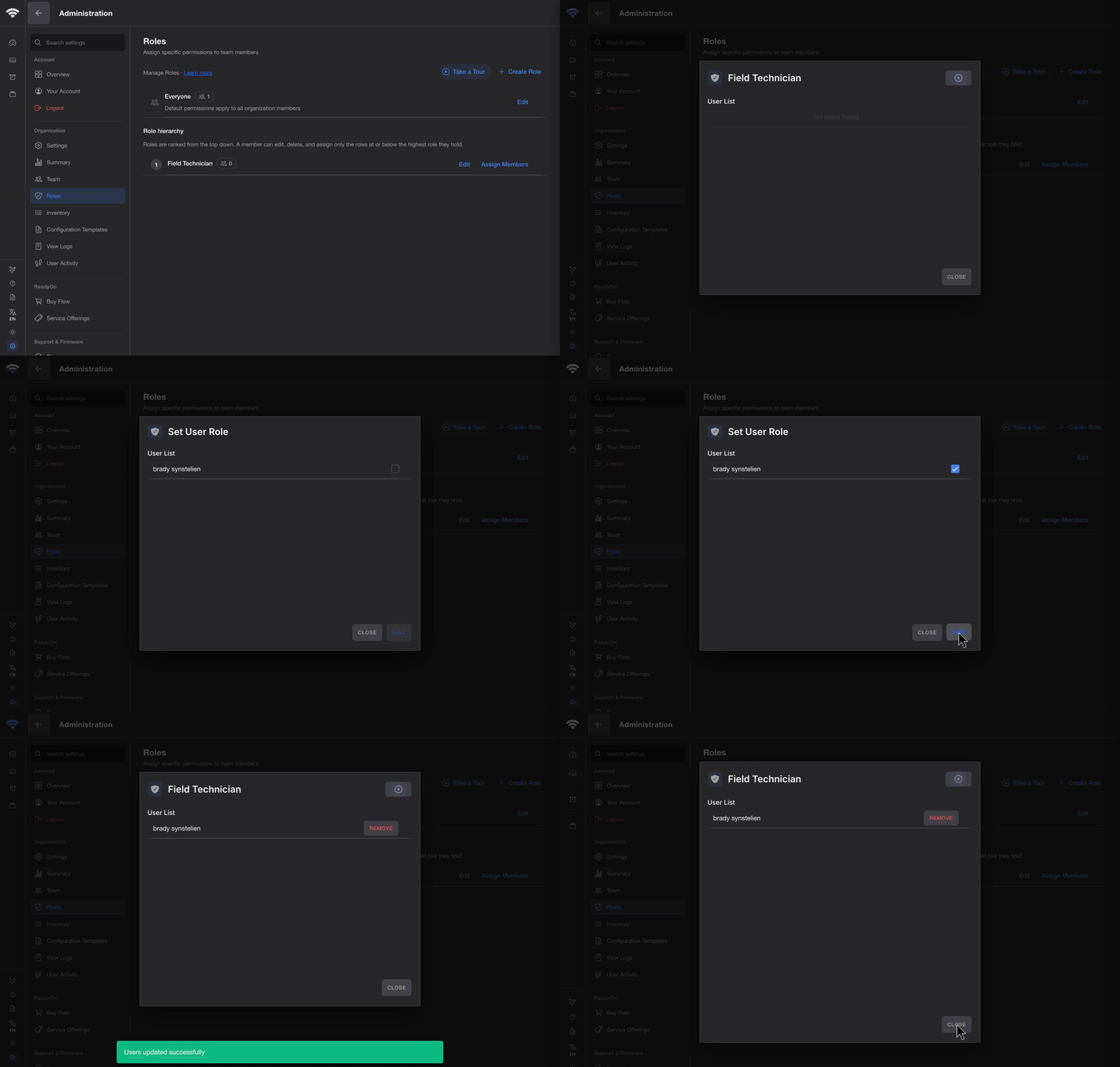
- Go to Administration > Organization > Roles.
- Next to the role, select Assign Members.
- Select +, choose the members, and select Save.
- Select Close.
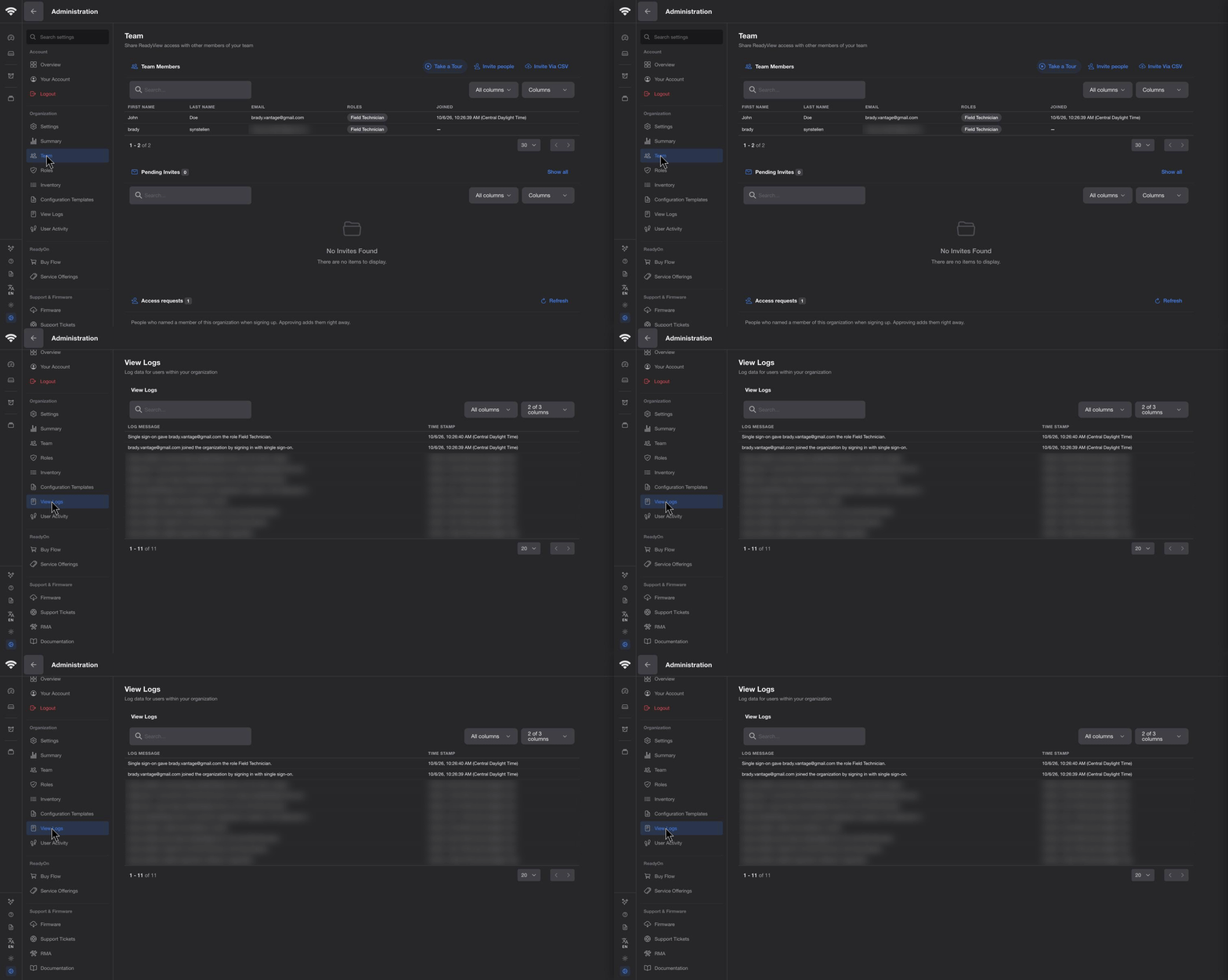
You can also give people roles when you invite them under Administration > Organization > Team. They get those roles when they join.
#Rank roles
The Role hierarchy on the Roles page lists roles from the highest rank to the lowest. To change a role's rank, drag its rank number or use the arrows.
A member can edit, delete, and assign only the roles at or below their highest role, so keep administrator roles at the top. Everyone is a system role, and its rank is fixed.
#Limit a site to certain roles
Members can open every site in your organization unless a site is private. A private site opens only for members who hold one of its permitted roles.
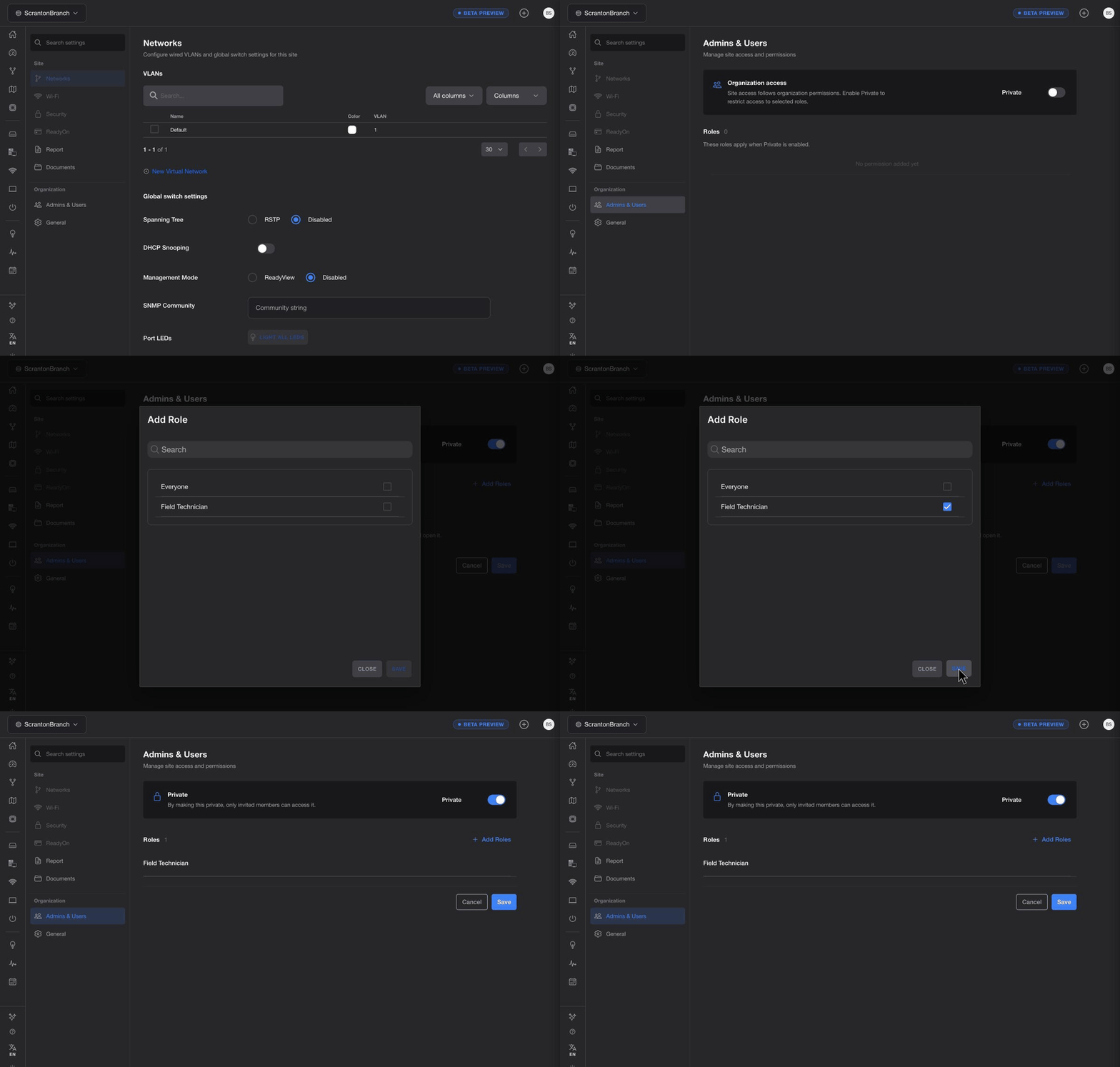
- Open the site and go to Settings > Admins & Users.
- Turn on Private.
- Select Add Roles, choose the roles that can open the site, and select Save.
- Select Save at the bottom of the page.
Add at least one role before you make a site private. With no permitted roles, nobody in your organization could open it.
#Roles and single sign-on
If your organization uses single sign-on, your identity provider can assign roles too.
- People who join through single sign-on get the Everyone role. While Everyone allows anything, ReadyView shows a warning with a Review roles link under Administration > Organization > Settings > SAML Configuration.
- Each time someone signs in, ReadyView applies the roles named in their
roleattribute and removes roles it no longer sends. Only roles that exist in your organization are applied. - Roles you assign in ReadyView are never changed by single sign-on.
#Troubleshooting
| Symptom | What to check |
|---|---|
| "Permission required" | None of the member's roles includes that permission. Add it to one of their roles, or assign them a role that has it |
| You can't edit, delete, or assign a role | The role ranks above your highest role |
| A permission can't be selected | You can grant or remove only the permissions you hold yourself |
| A member can't open a site | The site is private and none of the member's roles is permitted. Add one of their roles under Settings > Admins & Users |
| A member can do more than expected | One of their roles allows it, often Everyone. If any of a member's roles allows something, they can do it |
| A single sign-on member lost a role | Their identity provider no longer sends it. See Roles and single sign-on |
#Related guides
Last updated October 6, 2026