Networking basics
A plain-language introduction to how networks work, written for anyone deploying or managing a ReadyLinks network for the first time.
You don't need to be a network engineer to run a ReadyLinks network, but a working mental model of what happens when one device talks to another makes every other page in these docs easier to follow. This section builds that model from the ground up.
How data moves
Frames, packets, MAC addresses, and the hop-by-hop journey from a laptop to a web server.
IP addressing
IPv4 addresses, subnets, gateways, DHCP, DNS, and NAT explained with worked examples.
Switching and VLANs
What a switch actually does, why VLANs exist, and how tagged and untagged ports fit together.
VLANs in depth
Design patterns, management and voice VLANs, port isolation, QinQ, and VLAN hopping attacks.
Multicast
Group addresses, IGMP joins and queries, IGMP snooping, and why a querier matters.
Ethernet, PoE, and cabling
Link speeds, duplex, cable categories, distance limits, and powering devices over the same cable.
Layer 2 security
DHCP snooping, ARP inspection, port security, storm control, BPDU guard, and 802.1X.
Troubleshooting basics
A bottom-up checklist for figuring out why something can't connect.
CLI quick reference
Every GL-series switch command used in these guides, grouped by task, with the mode it runs in.
Glossary
Short definitions of the terms used throughout the ReadyLinks documentation.
#What a network is
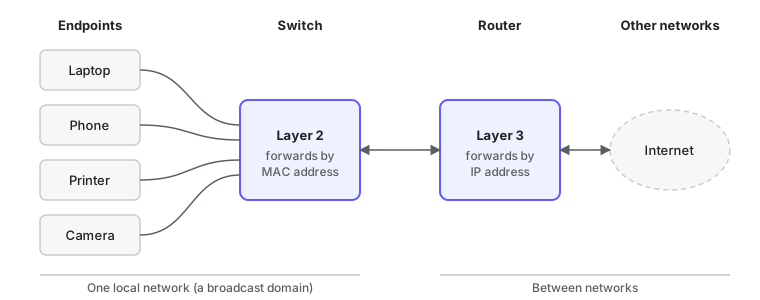
A network is any set of devices that can exchange data with each other. In practice that means three kinds of things:
- Endpoints — the devices that generate or consume traffic: laptops, phones, printers, cameras, access points, servers.
- Switches — the devices that connect endpoints together inside a building. A switch forwards traffic between the ports on it based on hardware addresses.
- Routers — the devices that connect one network to another, including to the internet. A router forwards traffic between networks based on IP addresses.
Everything else — firewalls, wireless controllers, cloud dashboards like ReadyView — is a specialisation of, or a management layer on top of, those three roles.
#The two addresses every device has
Each network interface carries two addresses, and most confusion about networking disappears once the difference between them is clear.
| MAC address | IP address | |
|---|---|---|
| Looks like | a4:c3:f0:12:ab:9e | 192.168.10.42 |
| Assigned by | The manufacturer, burned into the hardware | Your network, usually via DHCP |
| Scope | Only meaningful on the local network segment | Meaningful across the whole internet |
| Used by | Switches | Routers |
| Changes when you move the device? | No | Yes |
A MAC address is like the serial number on a parcel: it identifies a specific piece of hardware, but tells you nothing about where it is. An IP address is like a street address: it tells you where the device lives right now, and it changes when the device moves to a different network.
When you claim a ReadyLinks switch you enter its MAC address, because that never changes. When you set up switch settings you give it an IP address, because that depends on the network you are putting it in.
#Layers
Network behaviour is described in layers. Each layer only has to solve one problem and relies on the layer below it for everything else. The four you will meet in day-to-day work are:
| Layer | Name | Solves | Unit of data | Example protocols |
|---|---|---|---|---|
| 1 | Physical | Getting bits across a cable or radio | Bits | Ethernet electrical signalling, fibre optics, Wi-Fi radio |
| 2 | Data link | Delivering data to a specific device on the same segment | Frame | Ethernet, VLAN tagging (802.1Q), ARP |
| 3 | Network | Delivering data to a device on any network | Packet | IP, ICMP (ping) |
| 4+ | Transport and application | Delivering data to the right program, reliably | Segment / message | TCP, UDP, HTTP, DNS, DHCP |
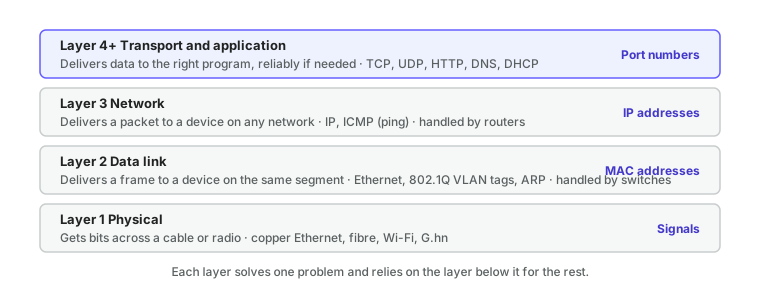
The phrases Layer 2 switch and Layer 3 switch come straight from this table. A Layer 2 switch forwards on MAC addresses only. A Layer 3 switch can also route between IP networks, which is why ReadyLinks GLx switches can act as the gateway for the VLANs they host.
#What happens when you open a web page
Here is the whole stack in one story. A laptop on a ReadyLinks network opens https://readylinks.io.
- DNS. The laptop asks its DNS server "what is the IP address for readylinks.io?" and gets back something like
104.21.8.17. - Local or remote? The laptop compares that address with its own address and subnet mask. The server is not on the local network, so the packet has to go to the default gateway (the router).
- ARP. The laptop knows the gateway's IP address but needs its MAC address to build an Ethernet frame. It broadcasts "who has 192.168.10.1?" and the router answers with its MAC.
- Framing. The laptop wraps the IP packet (destination
104.21.8.17) inside an Ethernet frame (destination: the router's MAC) and sends it out of its port. - Switching. The ReadyLinks switch reads the destination MAC, looks it up in its MAC table, and forwards the frame out the single port that leads to the router. Other ports never see it.
- Routing. The router strips the Ethernet frame, reads the IP destination, consults its routing table, and sends the packet toward the internet. Along the way it usually rewrites the source address with NAT so the reply can find its way back.
- Hop by hop. Every router on the path repeats step 6 until the packet reaches the server. Each hop is a new frame; the IP packet inside stays the same.
- The reply follows the same process in reverse.
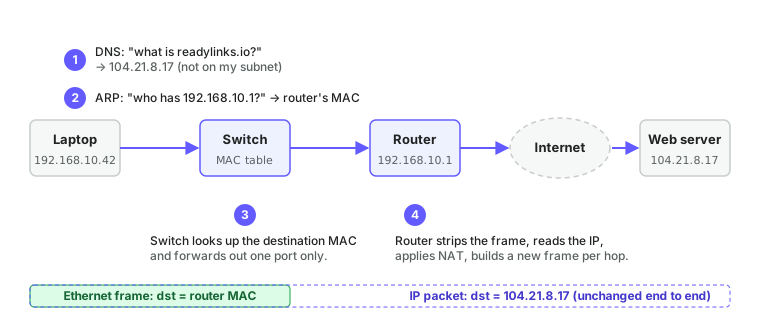
Every one of those steps corresponds to something you can see or configure in ReadyView: the DNS and gateway addresses in a VLAN's DHCP settings, the MAC table and ARP entries on a switch, the routing table on a Layer 3 interface. The rest of this section looks at each step more closely.
#Where to go next
- New to all of this? Read the pages in order, starting with How data moves.
- Setting up a site? Jump to IP addressing and Switching and VLANs, then come back to the Quickstart.
- Hardening a site? Layer 2 security lists the switch features to enable and the order to enable them in.
- Something broken? Go straight to Troubleshooting basics.
- Already at a switch prompt? The CLI quick reference lists every command used in these guides. Commands throughout are for GL-series switches running ReadyLinks OS; EX-series switches use a different CLI.
Last updated October 5, 2026